
CMFEditor - Program for viewing and editing files in the State Customs Service format
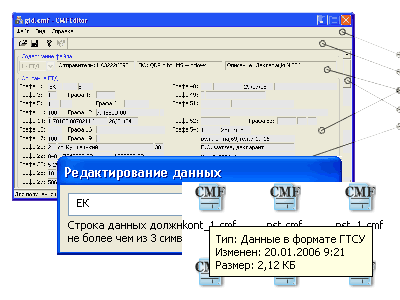 This program is primarily intended for Ukrainian customs brokers
and declarants. It allows viewing and editing data files in the
CMF format (one of the data transfer formats used by the State
Customs Service of Ukraine). After installing this program on your computer, your operating
system will start recognizing such files, and after double-clicking on such a file
it will show you its contents. The program is small in size (about 250kB), completely
self-contained, and can run from any media on any computer running the
Windows operating system.
This program is primarily intended for Ukrainian customs brokers
and declarants. It allows viewing and editing data files in the
CMF format (one of the data transfer formats used by the State
Customs Service of Ukraine). After installing this program on your computer, your operating
system will start recognizing such files, and after double-clicking on such a file
it will show you its contents. The program is small in size (about 250kB), completely
self-contained, and can run from any media on any computer running the
Windows operating system.
Program features:
- viewing and editing electronic copies of customs
declarations (CD);
- viewing and editing electronic copies of railway car
registries.
- Program Installation
- How to Register CMFEditor
- Working with the Program
- Frequently Asked Questions
- Changelog
To install the program, download the setup program to your computer, run it and follow its instructions. If you already have a previous version of the program installed, it is not necessary to uninstall it.
Files for download:
| CMFEditor 0.2 Setup Program. | CMFEditorSetup-2.0.exe | 605kB |
To work with the program, you need to obtain a registration key.
The registration key can be obtained free of charge (for trial
use for one month), or purchased for commercial use.
To obtain a registration key:
- go to the link: pf-soft.net/cmfereg/
and, following the instructions, obtain the key.
- run the program;
- in the program menu "Help" select the item "Registration";
- in the "Declarant EDRPOU" field, enter the EDRPOU code that you specified when obtaining
the key, and in the "Registration Key" field - the key itself.
- Click the "OK" button.
The registration key is issued for a specific period. After the expiration date, use the procedure described above again.
Upon successful user registration, the registration key is saved in the Windows
registry and does not need to be entered when reopening files. But since the program
can be used on any other computer with (the Windows operating system),
we strongly recommend that you always have the registration key with you.
To open a file with an electronic copy of a CD, use the menu item "File -
Open" or the corresponding button on the toolbar. If you are a registered
user, the program will open the selected file.

In the upper part of the program's working window, brief information
about the contents of the opened file is displayed. One file can contain electronic copies of several
CDs, in this case it is necessary to select the required CD in the list on the left.
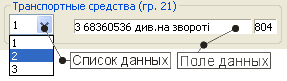 All data in the electronic copy of the CD is contained in fields, and the fields in turn are located in forms. Visually, the forms are displayed as in the figure below: Using the scroll bar and drop-down lists in the upper left part of the forms, find the data that you need to change. |
To edit data, double-click the mouse on the corresponding field.
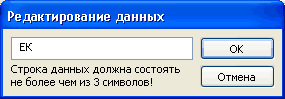 An
editing dialog box will appear. Correct the data as necessary and click the
"OK" button.
An
editing dialog box will appear. Correct the data as necessary and click the
"OK" button.
After making the necessary changes, save the file using the menu command "File - Save" (or the corresponding button on the toolbar). Keep in mind that when saving a file, the program does not overwrite the opened file, but creates a new one, adding to the name of the opened file a string of the form "_n", where n is the CD number in the opened file. That is, if you opened a file "mygtd.cmf" containing 1 CD, changed any data in it and clicked "Save", then the data in the file "mygtd.cmf" will remain unchanged, and the modified data will be saved by the program in a file named "mygtd_1.cmf".
For all questions, comments and suggestions, write to: pf.soft.info@gmail.com
2.0. - 01.03.2011